In the previous module, we covered the theory. In this module, we will gather references, examine the ZBrush interface, and set up the file for further character development.
Reference Gathering
Any work on a 3D model begins with visual research. References help to understand an object’s structure, grasp its proportions, and define its characteristic form.It can be particularly challenging for a novice artist to visualize how an object appears from different angles and how its individual elements connect in space. Ready-made 3D models allow one to examine an object from any perspective, study its silhouette, proportions, and volume.
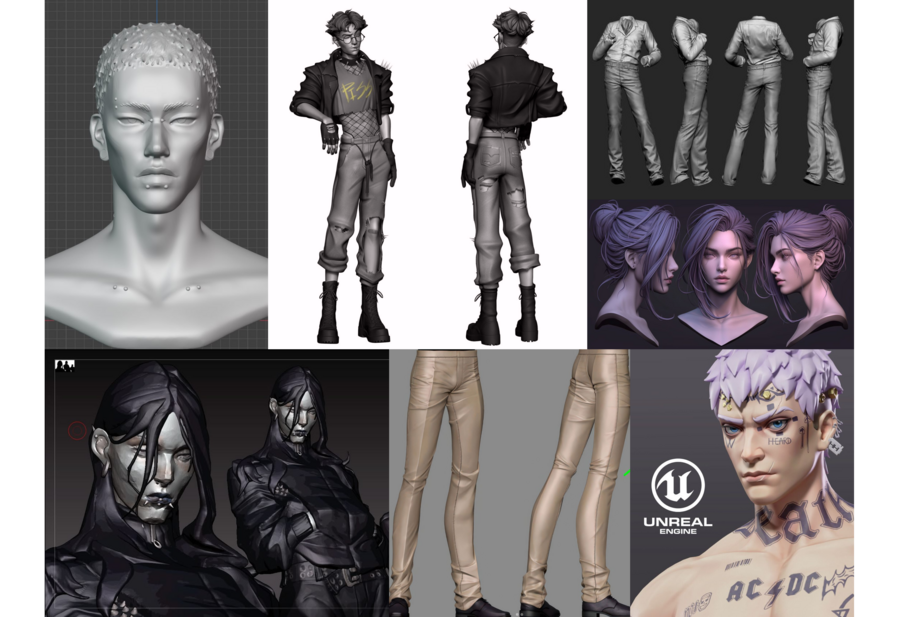
Example board with 3D references
You can find suitable references on platforms such as Pinterest or ArtStation, but you are also welcome to use your own image sources.It is not necessary to collect a large quantity of images. What is far more important is that the selected materials help you understand the object’s form and complement one another.
Interface and Navigation
Now that the visual materials are ready, you can move on to getting acquainted with ZBrush.
When you first launch the program, the interface might seem unfamiliar: there are many panels, buttons, and tools whose function is not always obvious. At this initial stage, you don’t need to learn them all—it is enough to familiarize yourself with the elements that will be necessary for further work.
General screenshot showing the viewport and labels indicating locations
- Canvas — this is the central part of the screen where the 3D model is displayed. Interaction with the model begins here. Here you can rotate, zoom in and out, and move the image across the screen.2. Lightbox — this is a built-in ZBrush library through which you can open projects, finished models, tools, brushes, materials, and other resources. To open the Lightbox, click the LightBox button in the top part of the interface or use the hotkey «,» (in English)3. At the top of the interface are tools for object manipulation, brush settings, and other parameters that change depending on the selected tool.4. On the left side of the interface, there is usually a panel with quick access to certain tools and settings. Depending on the interface configuration, this area may contain buttons for selecting brushes, materials, and other elements.5. The right side of the interface contains important tools for controlling the object and its geometry. Here are located palettes related to model settings, surface display, and working with its individual parts.
Let’s delve deeper into how 3D objects are organized in ZBrush.
Screenshot or GIF with tool and subtitle
Tool — this is the primary instrument we work with. It contains the model and its settings. Every time we create or load an object, we work with a specific Tool.SubTool — this is a separate element within a Tool. One model can consist of multiple SubTools, each representing a distinct part of the object. For instance, when creating a character, the head, torso, and limbs can be separated into individual elements. This allows them to be edited independently of one another.
We will also take a closer look at the right sidebar, specifically its functions, which will be useful at the beginning of your work.
highlighted buttons on the panel
Document and Program Appearance Settings
Before you begin modeling, it’s wise to customize your ZBrush workspace. The Viewport is the area where we see and interact with the 3D model. As mentioned before, the main workspace in ZBrush is called the Canvas, and you can adapt it to make your workflow more comfortable—and more pleasing to the eye!
Button size
Sometimes the buttons in ZBrush end up outside the program window—part of the panel won’t fit on the screen, making it impossible to select the desired tool. Therefore, it is useful to adjust the interface scale before you begin working.

To change button size:
- Open the Preferences palette at the top of the interface.
- Navigate to the Interface section.
- Locate the Button Size setting.
- Adjust the value to find the optimal button size.
Reducing the button size allows you to fit more elements on the screen, while increasing it makes them more noticeable and easier to press. Adjust the value so that the interface remains readable and generally accessible, but without overwhelming the viewport.
After changing the settings, you may need to restart ZBrush.
Document Size
If the background appears too small, doesn’t occupy all available space, or if there are empty areas around it, you should check the document settings.


The difference between the default size and fitting to the computer format
- Open the Document palette.
- Find the WSize and HSize buttons—these set the document’s width and height.
- Click Fit. This adjusts the document’s display to fit the available window area.
If you want the background to fill the entire window, you can also manually set the document dimensions using WSize and HSize, based on your screen resolution.
Interface Color Settings
In ZBrush, you can also change the color of the workspace background. It is best to choose a neutral background that allows the model’s silhouette to be clearly visible.
GIF with background color change
To set the workspace background, open Document → Back. Here you can change the background color or adjust the gradient.When working on a sculpture, it is not necessary to make it bright or high-contrast—the main thing is that it does not interfere with judging the form.
ZBrush allows you to not only customize the workspace background but also change the interface color itself. If the standard gray-orange palette seems too boring, you can repaint the buttons in your favorite shades and make your workspace more personal :)
GIF where the button colors change